Every order in one list — counter, online, all of it
One number, one status, one place. The invoice, the payment, and everything that happens afterwards all hang off the same order.
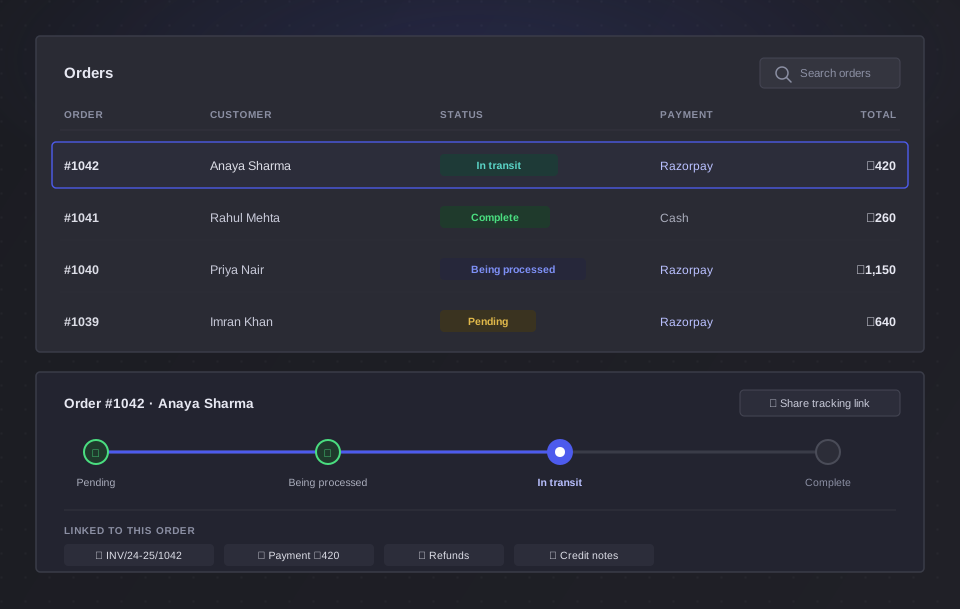
Wherever it came from, it lands here
There's no “online orders” screen and “shop orders” screen to keep in step. There's one list, and everything is in it.
Counter and online, together
A sale you rang up yourself and one that came in overnight sit in the same list, each tagged with where it came from — your storefront calls a counter sale exactly what it is: In-Store.
Find the one you want
Search by order number, customer or total, and narrow it down by where the order has got to and whether it's been paid.
Its own number
Every order takes the next number from your series — the one your customer reads back to you on the phone.
Orders
Stop answering “where is my order?”
Every order comes with its own link the moment it's placed — sitting in the list with a copy button, ready to send.
- A full link and a short one, both copyable straight from the row
- Paste it into a message and the customer can follow the order themselves
- It's the same link whether the order came from your counter or your storefront
Order Status
Forward only, and it says so
An order that can be quietly moved back to “pending” after it shipped isn't a record of anything. Move it along as you work it — and that's the only direction.
- Complete and cancelled are final, and BlackX warns you before you commit to either
- Cancelling makes you write a reason — so a cancelled order always says why, months later
- In a hurry? Jump straight to complete. The stages are there to help, not to nag
- Turn on status update emails and your customer is told each time it moves
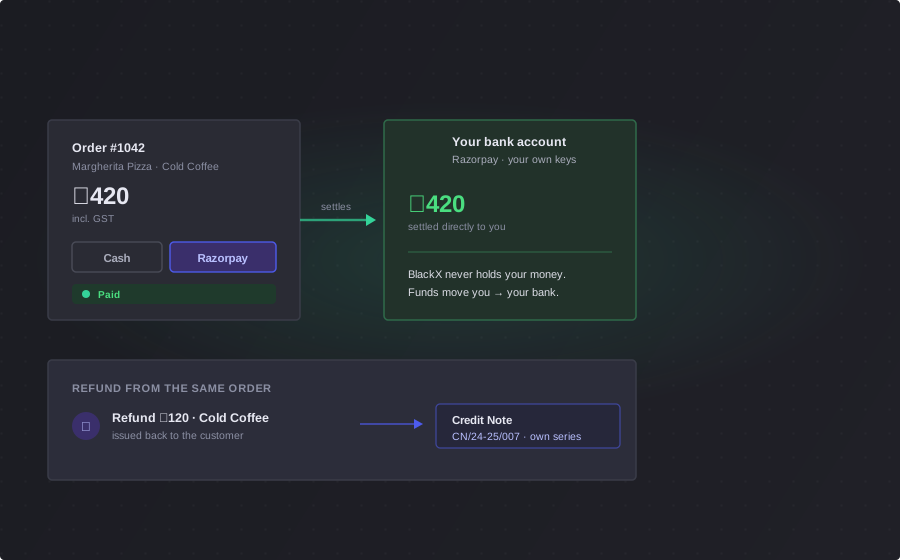
Take the money, and be able to prove it
Cash over the counter or a card from the other side of the country — either way it ends up recorded against the order it paid for.
- Took cash? One action marks the order paid by cash, and the invoice flips to paid with it
- Paying online? Switch the order over and a Pay button appears on its invoice link — send it and they pay from anywhere
- The money runs through your own Razorpay account, so it settles directly with you — it never sits with us
- Every payment lands in your transactions — amount, mode and whether it was captured, authorised or failed
Your numbering, your rules
If your orders have run on a prefix and a number since before any of this, they can carry on doing exactly that.
- Set your prefix and the number to start from — the preview shows you the format before you save
- Turn on an email when an order is placed, and another when it moves
- Pick whether the cart opens on cash or online payment by default
- Decide whether a customer can have more than one order pending at a time
Everything hangs off the order
Open one order and the whole story of that sale is in front of you.
The GST invoice
Raised the moment the order is placed, in its own numbered series, with a link you can send the customer.
The tax, line by line
Rate, discount, tax percentage and tax amount on every line — and CGST, SGST, IGST or UTGST totalled on the order itself.
Refunds and credit notes
Both start from the order and stay attached to it, so the money and the paperwork never drift apart.
Order questions
Can I tell an online order from a counter sale?
Yes — every order is tagged with where it came from, and they all live in the same list. You're never reconciling two systems at the end of the day; there's only ever one list of orders.
Can my customer track their order?
Yes. Every order has its own link and a short link sitting right in the list with a copy button. Send it over and the customer can follow the order themselves instead of ringing you to ask where it is.
Can I undo a status change?
No — and that's deliberate. Once an order is complete or cancelled it stays that way, and BlackX warns you before you do it. Cancelling also makes you write a reason, so a cancelled order always says why it was cancelled rather than leaving you guessing months later.
How do I record a cash payment?
One action on the order — mark it paid by cash. It's recorded as exactly that, the invoice flips to paid, and the payment lands in your transactions against that order.
How does a customer pay online?
Switch an unpaid order over to online payment and a Pay button appears on that order's invoice link. Send them the link, they pay through your own Razorpay account so the money settles directly with you, and the order marks itself paid when it clears.
Can I change an order after it's placed?
You can move its status and you can cancel it, but you can't rewrite what was sold — because an invoice has already been issued against it. If something needs to come back, issue a refund or a credit note and it's all properly accounted for.